🦥 SLOTHMON
SlothMon 2 · Extensions

Your phone as a control panel for your PC.

SlothMon Series 2 (2.0.0 and later) runs extensions that turn the screen of your phone or tablet into a tool for controlling your PC. Choose an extension in the menu of the SlothMon window and its control screen appears on the connected phones. Go back to "Home" and the phones show the PC screen again.

The all-in-one (SlothMon plus all three extensions):

Series 2v2.0.0

The edition that runs extensions.
Comes with all three.

App only (no extensions): Windows · Mac

CUTTOUCH

Button panel

Control your PC with buttons on your phone or tablet. The buttons send key presses, launch apps, control OBS, and more.

Download

Together with SlothMon (bundle)
Extension only (add to SlothMon Series 2)
v1.0.0 (2026-11-06)
SlothMon-with-cuttouch-v2.0.0-windows.zip SHA-256: 88d71ee111e882da04aa1eeedf43d09f5e06df82ba5a9ca6b76cb55c13e2c511
SlothMon-with-cuttouch-v2.0.0-macos.zip SHA-256: 86fee4f440de1f189e2671eb6286e88c6ba94bc2ac0a9b2e875d79632f4f7b84
cuttouch-v1.0.0-windows.zip SHA-256: 2173e263b3a1c533307bbf03330fed390a31702b3b3530564dc889379ba1584b
cuttouch-v1.0.0-macos.zip SHA-256: dde5065e27c0f07d76e9f3873aa17e2bf855d6953246f492105712e7f67776a2
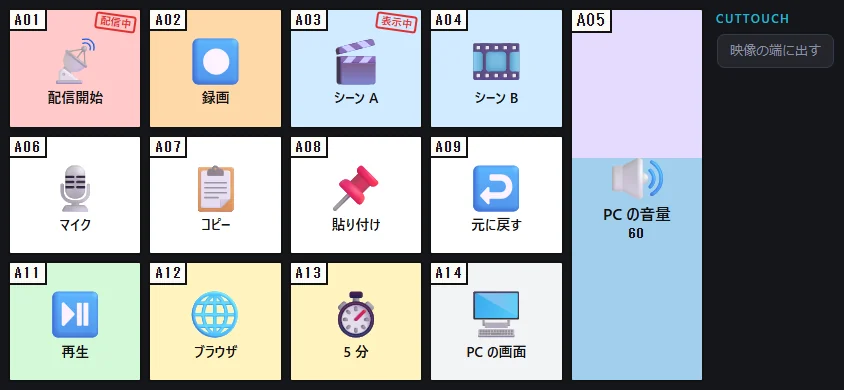
The CUTTOUCH control screen, with buttons for starting a stream, recording, switching scenes, copy, paste and more, and a PC volume slider
  • Lay out buttons and sliders freelyPlace buttons and sliders on a grid of up to 8 × 6. Switch with pages and profiles, and choose how each button works: press, long press, or on/off with each press.
  • Lots of actionsKey presses, text input, opening apps, files and URLs, media keys, window control, locking the screen or taking a screenshot, timers, sound effects, HTTP requests, running commands, and multi-actions that run several steps in order. You can also change the volume of each app (Windows only).
  • Works with OBS, Twitch, and YouTubeWith OBS (obs-websocket v5): switch scenes, start streaming or recording, mute, show or hide sources, and use audio volume sliders. You can also post to Twitch and YouTube chat and show titles and viewer counts.
  • Switch by the app in frontYour button profile switches automatically to match the app in front on your PC.
  • Show on the edge of the videoKeep the PC screen on your phone and show a row of buttons along its edge.
  • Edit on your PCEdit buttons in the settings screen on your PC. You can also import images and sound effects, and export and import profiles.
  • Network accessCUTTOUCH talks to OBS, Twitch, YouTube, or an HTTP destination only when you set up such buttons. For YouTube, enter a Google OAuth client that you create yourself in the settings screen.
SlothCon

Control device

Your phone as a control device. SlothCon turns your whole phone screen into buttons and dials, so while you draw with a pen tablet or pen display, the phone at hand takes care of "Undo", "hold Ctrl", "brush size", and more.

Download

Together with SlothMon (bundle)
Extension only (add to SlothMon Series 2)
v1.0.0 (2026-11-06)
SlothMon-with-slothcon-v2.0.0-windows.zip SHA-256: 31aee7832c405ba29598a5ebf066b152ad044802835bdbd469441b5545ddfbca
SlothMon-with-slothcon-v2.0.0-macos.zip SHA-256: abbd6fc20245021d8044e81b208a462c9a366548a6fdef669f816a27f28001cf
slothcon-v1.0.0-windows.zip SHA-256: 7d5bb320c07ec2f533054dc0c0a281a349a6df53a9953a5f652c3dfe835b8f19
slothcon-v1.0.0-macos.zip SHA-256: a6f6c66a5dbe34c15a6d4d0c856bb1968303e41698ddde8971fd2b1a1fbfd8be
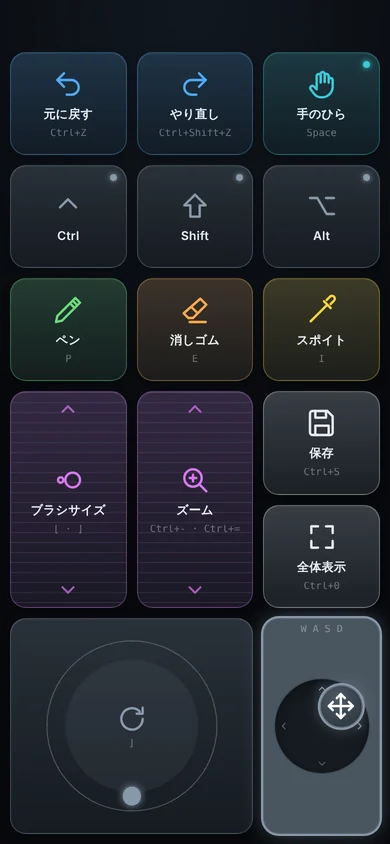
The SlothCon control screen, with buttons such as Undo, Redo, Hand, Ctrl, Shift, Alt, Pen and Eraser, dials for brush size and zoom, a circular slide and a stick (labels shown in Japanese)
  • Hold while touchingHold Ctrl, Shift, Space and so on only while your finger is on the button. You can also choose "press once" or "on/off with each press".
  • Dials, circular slides, and sticksDials and circular slides send keys or mouse-wheel steps as you trace them, for brush size or zoom. Sticks move arrow keys, the mouse cursor, or the wheel.
  • Layers and profilesLayers change what the buttons do while you hold them, and profiles let you keep a setup for each app.
  • Edit the layout on your PCPlace controls on a phone-shaped preview and set their name, icon, color, and size. Teach keys by actually pressing them.

SlothTimer

Pomodoro timer

Focus time where even a sloth works hard. A Pomodoro timer that repeats focus and break, with a long break after the number of rounds you choose, watched over by a sloth hanging from a branch.

Download

Together with SlothMon (bundle)
Extension only (add to SlothMon Series 2)
v1.0.0 (2026-11-06)
SlothMon-with-pomodoro-v2.0.0-windows.zip SHA-256: 7fe4e8fa56d8e72eee82d72e7a54650b6d92e29c22c1dff1ddc75a1f938e264b
SlothMon-with-pomodoro-v2.0.0-macos.zip SHA-256: 79f90e8729922d69b5df23e1997f066960fff0f1712efd2d6a26c13ece629d8e
pomodoro-v1.0.0-windows.zip SHA-256: c65389cfc35b58507e906e1ab18d708db8a700009d92b938dc20f3da274474c2
pomodoro-v1.0.0-macos.zip SHA-256: 17bff2c5e8b5bf1ed5c8a7ba6454c44ae7b4e8851dd8949b506119468f6a59b4
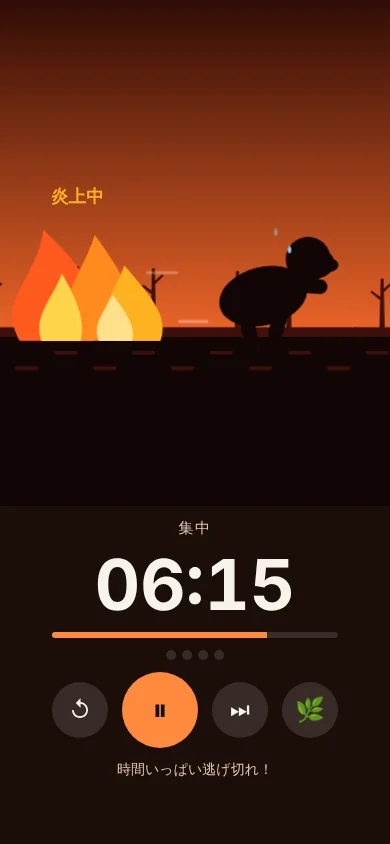
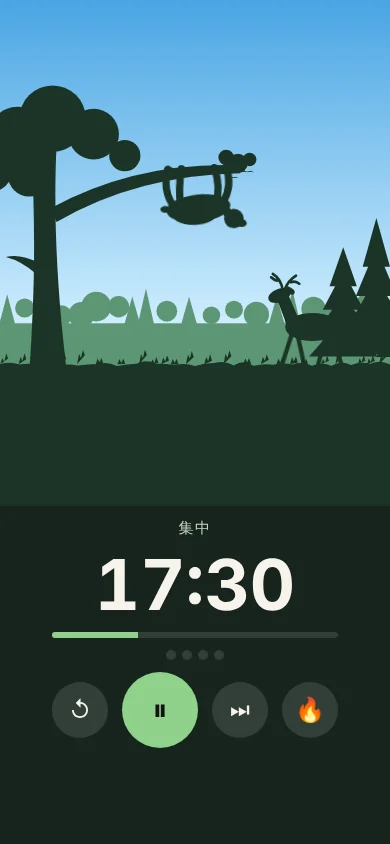
SlothTimer in the normal look: a sloth hangs from a tree branch in the forest while a deer walks by, with 17:30 of focus time left below SlothTimer in the Fire look: flames close in on the sloth under a red sky

Normal look (left) and Fire (right)

  • Focus, rest, repeatBy default: 25 minutes of focus and a 5-minute break, with a 15-minute long break every 4 rounds. You can change the times and the number of rounds. During breaks, the sloth takes a rest too.
  • FireThe same timer shown as a "time limit": the flames close in as time passes.
  • Keeps going when you close itThe timer runs on your PC, so it keeps going when you close the control screen or switch back to the PC screen. Every connected device shows the same time.
  • Tells you when a round endsA sound, vibration, and flashing tell you when a round ends. It can also open the timer screen on your phone at that moment.

Installing and using

The all-in-one and the bundles already include them. Use the "extension only" zips to replace or add an extension.

  1. Get SlothMon Series 2

    Extensions run on SlothMon Series 2 (2.0.0 and later). They do not work with Series 1.

  2. Put the extension in place ("extension only" zip)

    On Windows, put the folder from the zip (for example cuttouch) into the extensions folder next to slothmon.exe (so that you get extensions\cuttouch\cuttouch.exe). On a Mac, put it into the SlothMon-Extensions folder next to SlothMon.app.

  3. Turn it on

    Under "Extensions" in the SlothMon window, turn on the ones you want (all are off at first).

  4. Choose it in the menu

    The extension's name appears in the menu at the top of the window. Choose it to open its settings on your PC and its control screen on the connected phones. Go back to "Home" and the phones show the PC screen again.

  • Updating Quit SlothMon, then copy the new folder over the current one. Settings are kept in SlothMon's settings folder (if you delete the folder before copying, the images and sound effects you imported into CUTTOUCH are lost).
  • Moving your settings "Export / import settings" in the SlothMon window also saves and restores each extension's on/off state and settings in one file. The connection key and extension sign-in details (such as the OBS password) are not included.
  • Terms of use Extensions are free under the same terms as SlothMon itself. They may be used only as extensions of SlothMon (see LICENSE in each zip).
  • Using them on a Mac The Mac versions of the extensions have been checked only in a virtual environment.